👥 Users
Purpose Manage staff accounts that have access to the Water Billing platform.
Callouts
- User summary
- Search
- Add User
- Filters
- User register
- User actions
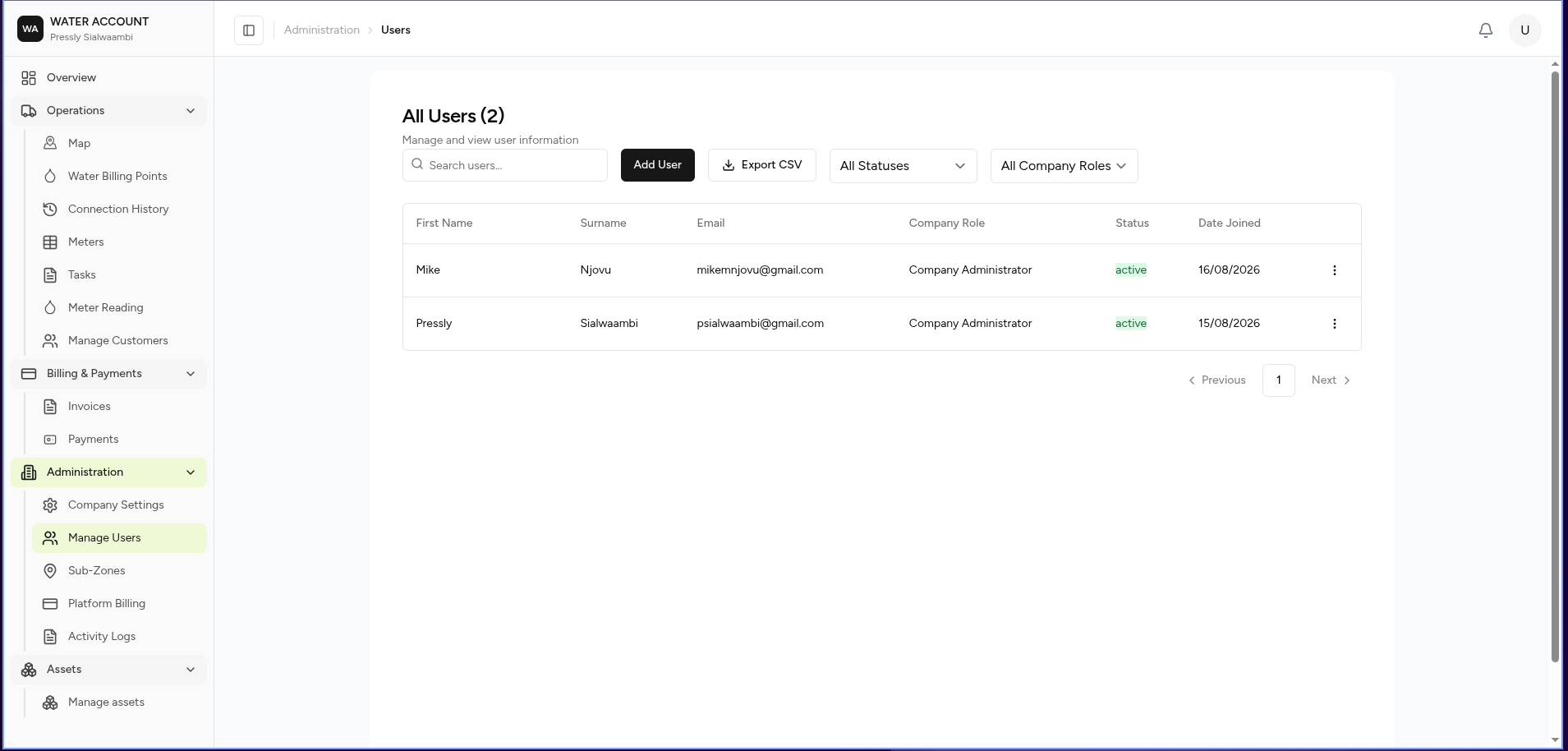
The Users page allows administrators to manage employees and system users who operate the platform.
Users are assigned company roles that determine what features and actions they can access.
What You Can Do
From this page you can:
- View all company users
- Search users
- Filter users
- Add new users
- Edit user information
- Remove users
- Export user records
Screen Layout
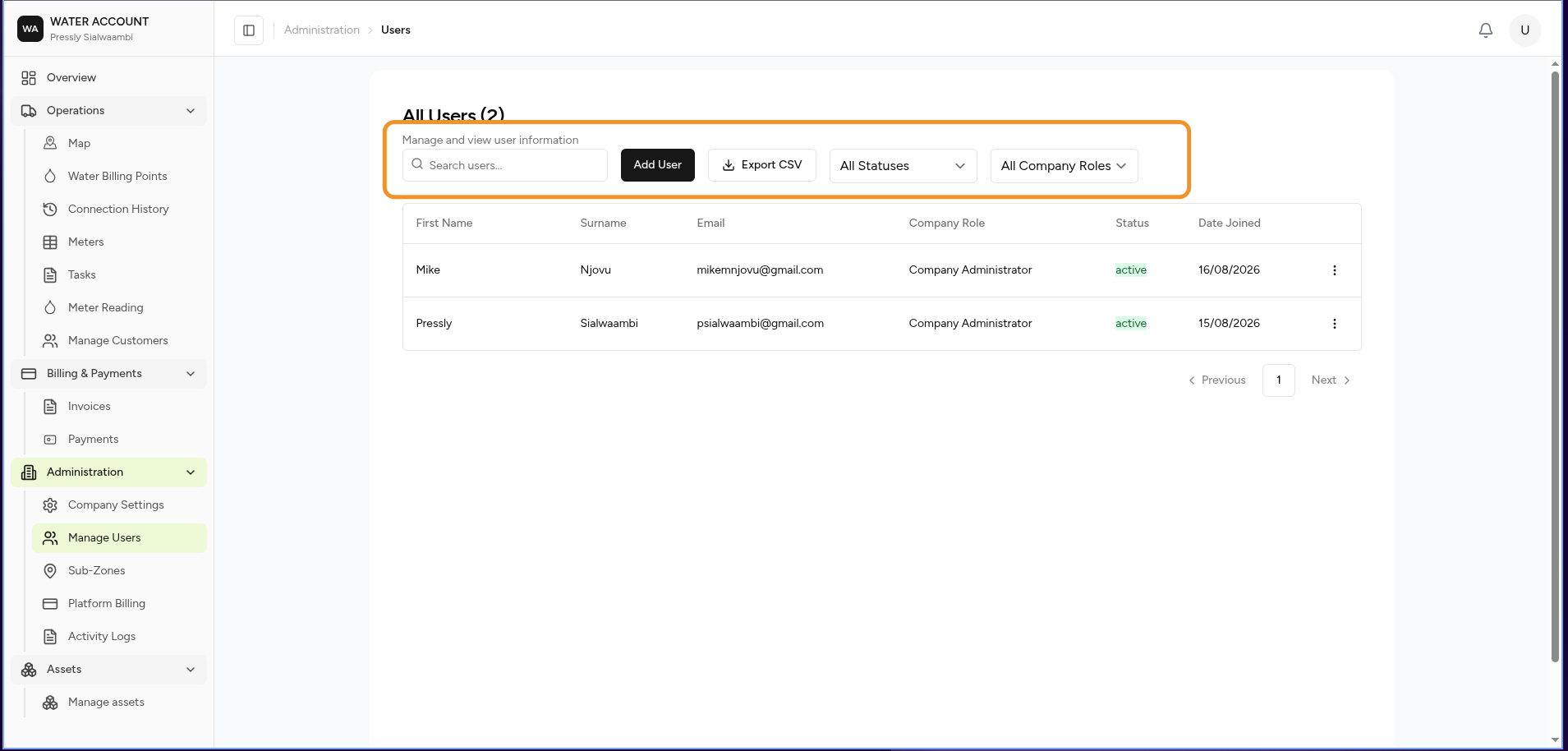
The page contains:
- User Actions
- Search
- Filters
- User Register
- Actions Menu
User Actions
The action bar provides access to common user operations.
| Action | Description |
|---|---|
| Add User | Create a new company user |
| Export CSV | Export user information |
Search
Use the search field to locate users.
Search supports:
- First name
- Surname
- Email address
Example:
mike@waterworks.com
Filters
Use filters to narrow the user list.
Available filters include:
| Filter | Description |
|---|---|
| Status | User account status |
| Company Role | Assigned user role |
User Register
Each row represents a company user account.
The register displays:
| Column | Description |
|---|---|
| First Name | User's first name |
| Surname | User's surname |
| User login email | |
| Company Role | Assigned permission role |
| Status | Account status |
| Date Joined | Account creation date |
User Roles
User roles determine what actions a person can perform.
Example roles:
| Role | Description |
|---|---|
| Company Administrator | Full company management access |
| Payment Agent | Handles customer payments and payment-related tasks |
| Field Operator | Performs field activities such as readings and inspections |
Additional roles may be available depending on company configuration.
User Actions
Each user has an actions menu.
Available actions include:
| Action | Description |
|---|---|
| Edit | Update user information and permissions |
| Delete | Remove user access |
User Status
Typical statuses include:
| Status | Meaning |
|---|---|
| Active | User can access the system |
| Inactive | User access is disabled |
Adding a User
Typical workflow:
Administrator

↓

Add User

↓

Enter User Details

↓

Assign Role

↓

Save

↓

User Receives Access
Expected Behaviour
The system should:
- Display all company users.
- Show each user's assigned role.
- Apply filters immediately.
- Restrict access based on assigned roles.
- Record user changes in the Activity Log.
Business Rules
- Only administrators can manage users.
- Every user must have a valid company role.
- User accounts must have unique email addresses.
- Deleted users should not affect historical records.
- User actions should be recorded for auditing.
Related Tasks
- ➜ Add User
- ➜ Edit User Permissions
- ➜ Deactivate User
- ➜ Review Activity Log
Related Pages
- Company Settings
- Activity Log
- Roles & Permissions
- Dashboard