⚙️ Company Settings
Purpose Manage organisation information used across the Water Billing platform.
Callouts
- Company Information
- Payment Configuration
- Default Map Location
- Contact Numbers
- Save Changes
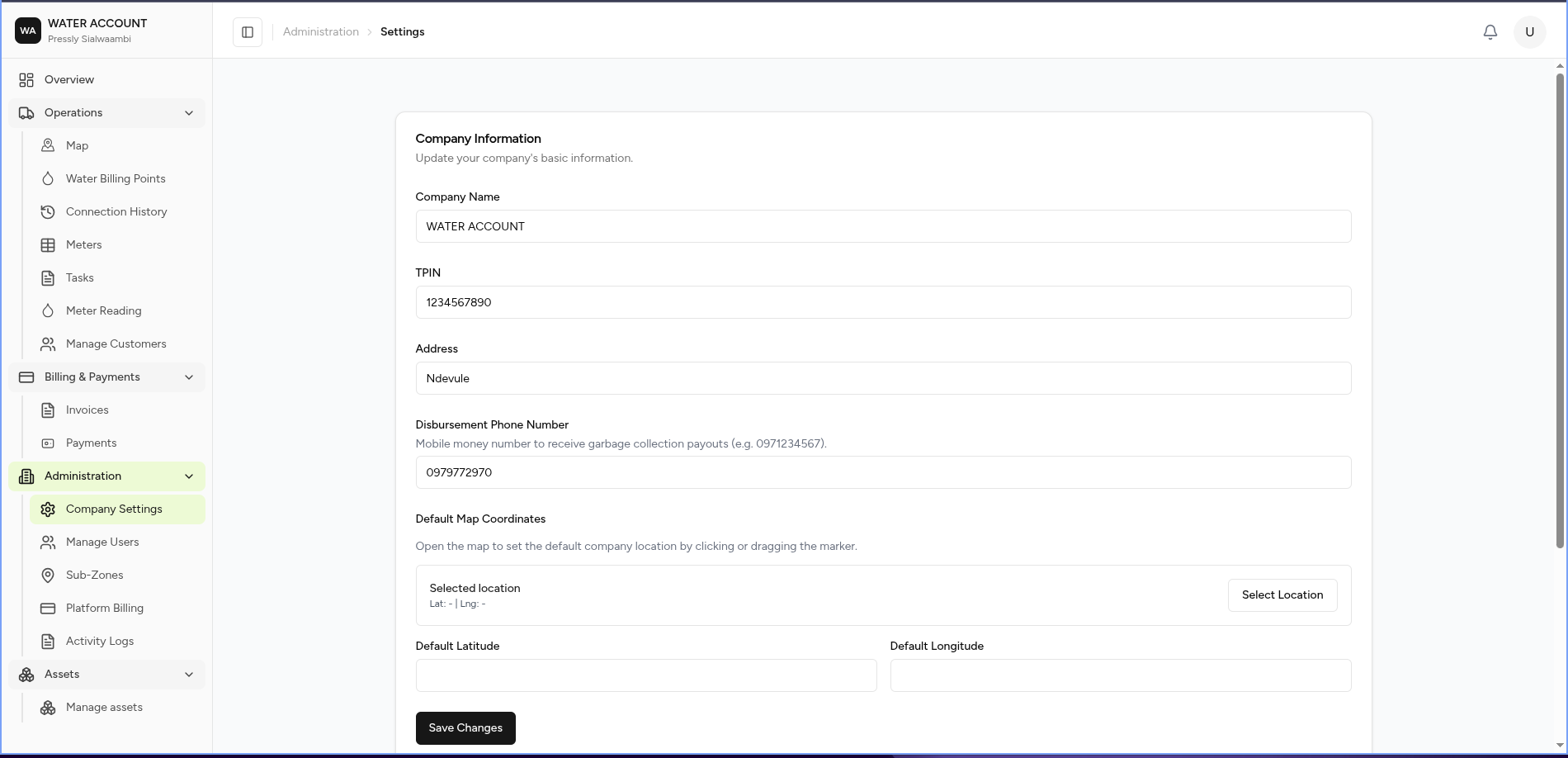
The Company Settings page allows administrators to configure the organisation profile and default settings used throughout the system.
These settings affect company identification, customer communication, payment collection, and map behaviour.
What You Can Manage
From this page you can:
- Update company information
- Configure payment receiving details
- Set the default map location
- Manage company contact numbers
Company Information
The company information section stores the organisation's basic details.
| Field | Description |
|---|---|
| Company Name | Official organisation name |
| TPIN | Tax identification number |
| Address | Company physical address |
| Disbursement Phone Number | Mobile money number used to receive payouts |
Company Profile Example
Company Name:
Water Works

TPIN:
2367654322

Address:
Garden Overspill 12/30
This information may appear on:
- Customer invoices
- Receipts
- Reports
- Communications
Disbursement Phone Number
The disbursement phone number is used for receiving collection payouts.
Example:
0976973101
Ensure this number:
- Belongs to the company.
- Is active.
- Supports the configured payment provider.
Default Map Location
The default map location controls the initial position displayed when users open map-based screens.
Administrators can set the location by:
- Clicking on the map.
- Dragging the location marker.
- Entering coordinates manually.
Location Fields
| Field | Description |
|---|---|
| Default Latitude | Geographic latitude |
| Default Longitude | Geographic longitude |
Example:
Latitude:
-15.4167

Longitude:
28.2833
Contact Numbers
The contact numbers section manages official company communication numbers.
These numbers may be used for:
- Customer support
- Billing communication
- Notifications
Adding a Contact Number
Steps:
-
Select Add New Number.
-
Enter the phone number.
-
Save changes.
The new number will appear in the contact list.
Save Changes
Select:
Save Changes
to apply updates.
Expected Behaviour
After saving:
- Company information is updated immediately.
- New invoices use the updated company details.
- Map screens load using the configured default location.
- Contact numbers become available across the platform.
Permissions
Only users with administrator permissions should be able to modify company settings.
Business Rules
- Company name is required.
- TPIN should be unique for the organisation.
- Map coordinates must contain valid geographic values.
- Contact numbers should use valid phone formats.
- Changes should be recorded in the Activity Log.
Related Pages
- Users
- Activity Log
- Billing
- Invoices
- Payments
- Dashboard