🗺️ Operations Map Overview
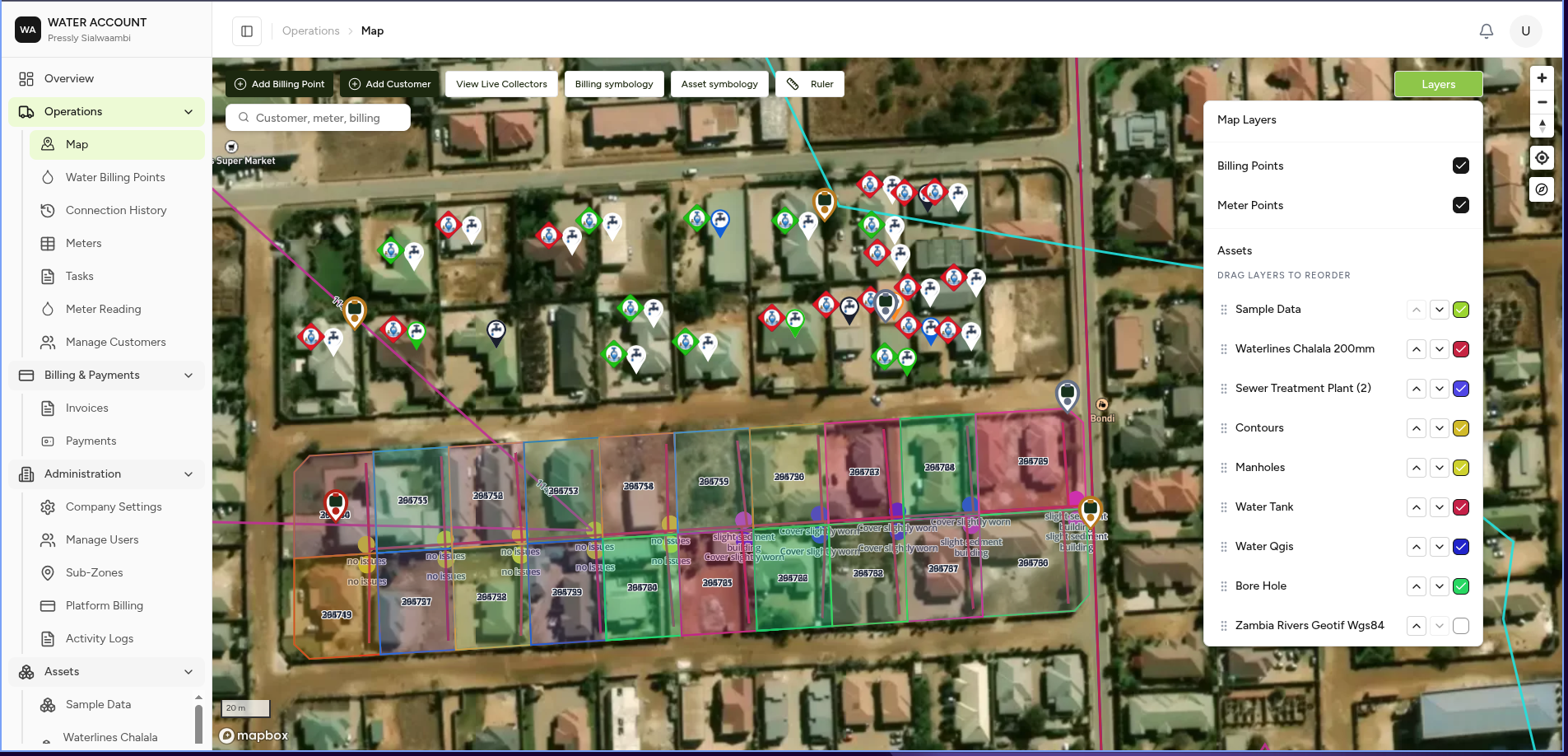
The Operations Map is the central location-based workspace in MapBilling.
It provides a visual view of company operations by displaying customers, billing points, assets, and infrastructure directly on a map.
Instead of searching through lists only, users can locate and manage operational data based on real-world locations.
Understanding the Map Screen
The map consists of several main areas:
+------------------------------------------------+
| Top Actions                                     |
+------------------------------------------------+
| Sidebar       |                                |
| Navigation    |       Interactive Map           |
|               |                                |
|               |                                |
+------------------------------------------------+
1. Navigation Sidebar
The left navigation provides access to operational modules.
Operations
Operations

├── Map
├── Water Billing Points
├── Connection History
├── Meters
├── Meter Reading
└── Manage Customers
These modules represent daily operational activities.
Map
The map provides a visual overview of all location-based records.
Users can:
- Locate customers.
- View billing points.
- View meters.
- Analyse infrastructure.
- Open records directly from the map.
Water Billing Points
Displays customer service locations.
Example:
Billing Point

Customer:
Jack Tembo

Address:
Corner House

Connection:
Metered

Status:
Active
Users can:
- View locations.
- Open customer details.
- Check billing status.
- View connection information.
Connection History
Shows changes made to customer connections.
Examples:
- New connection created.
- Meter installed.
- Connection status changed.
- Service disconnected.
Meters
Displays registered water meters.
Users can:
- Locate meters.
- View meter information.
- Review reading history.
- Perform meter readings.
Meter Reading
Used by field teams to capture meter readings.
Typical workflow:
Open Map

↓

Select Meter

↓

Open Meter Details

↓

Capture Reading

↓

Save Reading

↓

Billing Updated
Manage Customers
Provides access to customer records.
Users can:
- Find customers.
- Update information.
- View billing points.
- View payment history.
2. Map Controls
The map provides tools for navigation and data viewing.
Search
Search allows users to locate records by:
- Account number
- Customer name
- Address
- Billing point
Example:
Search:
Corner House
The map moves to the matching location.
Layers
Layers control what information is displayed.
Example:
Layers

☑ Billing Points

☑ Customers

☑ Meters

☑ Assets

☐ Pipelines

☐ Valves
Users can turn information on or off depending on the task.
3. Map Markers
Each location on the map represents an operational record.
Examples:
Billing Point
Represents:
- Customer connection
- Service location
- Billing information
Meter
Represents:
- Installed meter
- Meter ID
- Reading history
Asset
Represents:
- Pipeline
- Valve
- Sensor
- Infrastructure equipment
4. Map Interaction
Users can interact directly with map objects.
Example:
Click Asset

        ↓

Information Panel Opens

        ↓

View Details

        ↓

Take Action
Example: Capture Meter Reading From Map
A field operator can complete a reading without leaving the map.
Workflow:
Open Operations Map

        ↓

Locate Meter

        ↓

Click Meter Marker

        ↓

Select Actions

        ↓

Capture Reading

        ↓

Enter Meter Value

        ↓

Submit

        ↓

Reading Saved
5. Asset Management Integration
The map automatically displays uploaded assets.
Example:
Uploaded:
Pipeline Data

↓

New Map Layer

↓

Pipeline Navigation Added
Possible layers:
Assets

├── Pipes
├── Meters
├── Valves
├── Reservoirs
└── Sensors
Map Use Cases
Field Operations
Find:
- Customers
- Meters
- Connections
Complete:
- Meter readings
- Inspections
- Maintenance
Management
Analyse:
- Service coverage
- Asset locations
- Operational areas
Customer Support
Quickly answer:
"Where is this customer's connection?"
by searching and opening the map location.
Expected Behaviour
The map should:
✅ Load the company's operational area.
✅ Display available layers.
✅ Allow users to search records.
✅ Open details when objects are selected.
✅ Respect user permissions.
✅ Update based on uploaded asset types.
Related Pages
- Water Billing Points
- Meter Management
- Meter Reading
- Asset Management
- Dynamic Asset Navigation
- Activity Log