💧 Meter Readings
Purpose Display the Meter Readings dashboard with reading statistics, filters, tabs, and the reading register.
Callouts
- Reading tabs
- Search & filters
- Add Reading button
- Reading register
- Row actions
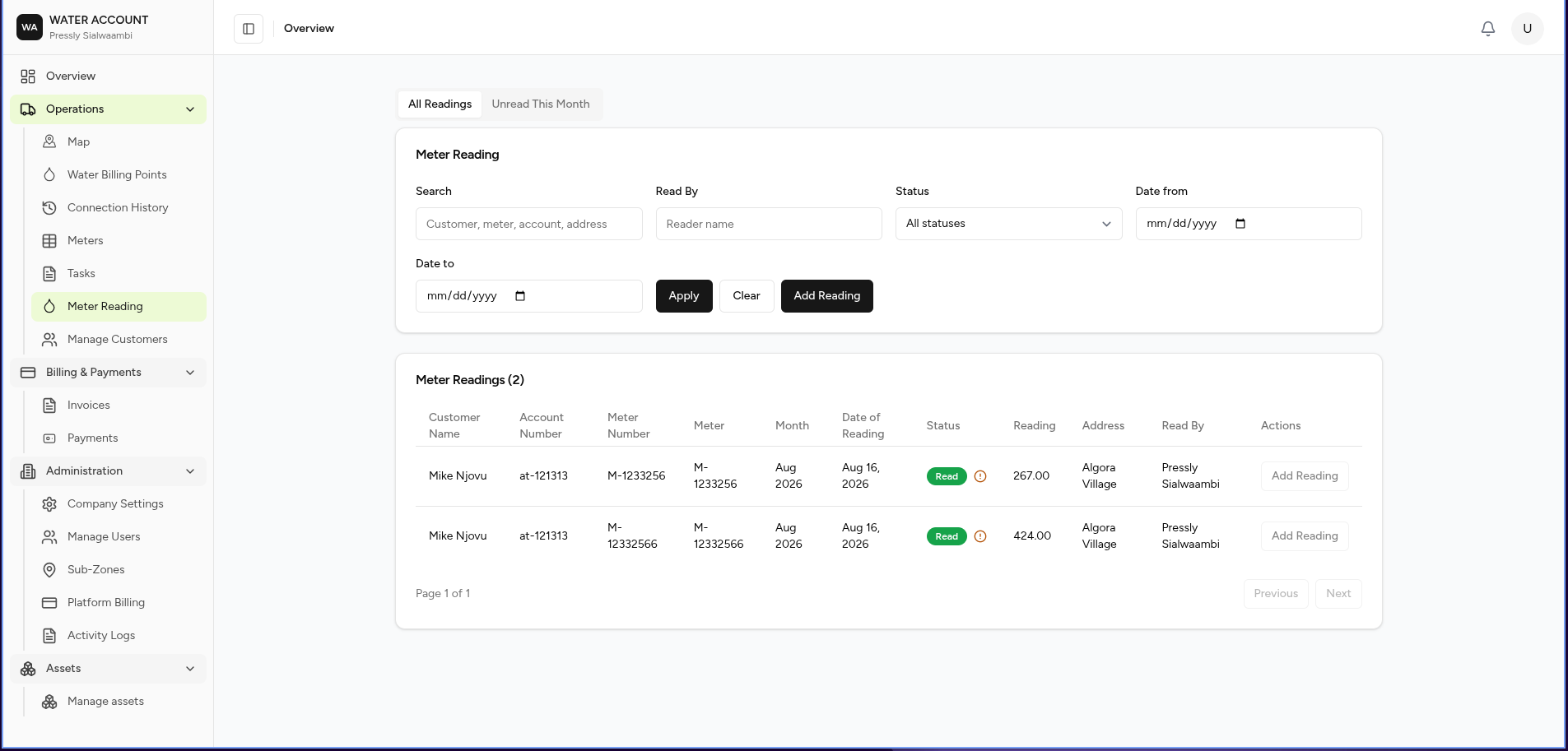
The Meter Readings page provides a central location for monitoring all recorded and outstanding meter readings.
It allows users to review completed readings, identify missed readings, filter results, and begin the process of recording a new reading.
What You Can Do
From this page you can:
- View all recorded meter readings
- View unread meters for the current month
- Search for a specific customer or meter
- Filter readings
- Identify missed readings
- Start a new meter reading
- Review reading history
Screen Layout
📷 Screenshot Placeholder
Image:
meter-readings-layout.png
The page is divided into five main areas:
- Reading Tabs
- Search & Filters
- Action Bar
- Meter Reading Register
- Reading Actions
Reading Tabs
Two tabs are available.
| Tab | Description |
|---|---|
| All Readings | Displays every meter reading. This tab is selected by default. |
| Unread This Month | Displays only meters that have not yet been read during the current billing period. |
The Unread This Month tab helps meter readers quickly identify outstanding work.
Search
Use the search box to locate readings by:
- Customer name
- Account number
- Meter number
- Asset ID
- Address
Example searches:
- Jack Tembo
- FO876506542
- mt-21442345678
Filters
Use filters to narrow the list.
Available filters include:
| Filter | Description |
|---|---|
| Read By | Meter reader |
| Status | Read or Missed |
| Date From | Beginning of date range |
| Date To | End of date range |
Select Apply to update the results.
Select Clear to remove all filters.
Add Reading
Select Add Reading to begin recording a new meter reading.
📖 For detailed instructions, see Reading a Meter.
Meter Reading Register
Each row represents one scheduled or completed meter reading.
The register displays:
| Column | Description |
|---|---|
| Customer Name | Customer receiving the service |
| Account Number | Customer account reference |
| Meter Number | Meter being read |
| Asset | Linked asset identifier |
| Month | Billing month |
| Date of Reading | Date the reading was captured or scheduled |
| Status | Reading status |
| Reading | Recorded meter value |
| Address | Service location |
| Read By | User who captured the reading |
| Actions | Available actions |
Reading Status
A meter reading may have one of the following statuses.
| Status | Meaning |
|---|---|
| Read | A valid reading has been recorded. |
| Missed | The scheduled reading was not completed. |
Additional statuses may be introduced as the system evolves.
Common Actions
From the register you can:
- Record a new reading
- View meter details
- Review customer information
- Open the associated asset
- View reading history
The actions available depend on your user permissions.
Expected Behaviour
The system should:
- Display All Readings by default.
- Update the register when filters are applied.
- Return matching search results.
- Display the correct reading status.
- Refresh the list after a new reading is recorded.
- Remove completed readings from the Unread This Month tab.
Business Rules
- Each meter should normally have one reading per billing cycle.
- Missed readings remain visible until recorded or resolved.
- A reading is linked to a customer, billing point, and meter.
- Only authorised users may add or update meter readings.
Related Tasks
- ➜ Reading a Meter
- ➜ Adding a Meter
- ➜ Billing Points
- ➜ Meters
Related Pages
- Dashboard
- Customers
- Billing Points
- Meters
- Billing