📋 Tasks
Purpose Display all field tasks, their status, priority, and assignment, so office and field staff can track open work and completed jobs.
Callouts
- Search
- Filters
- Add Task
- Task Register
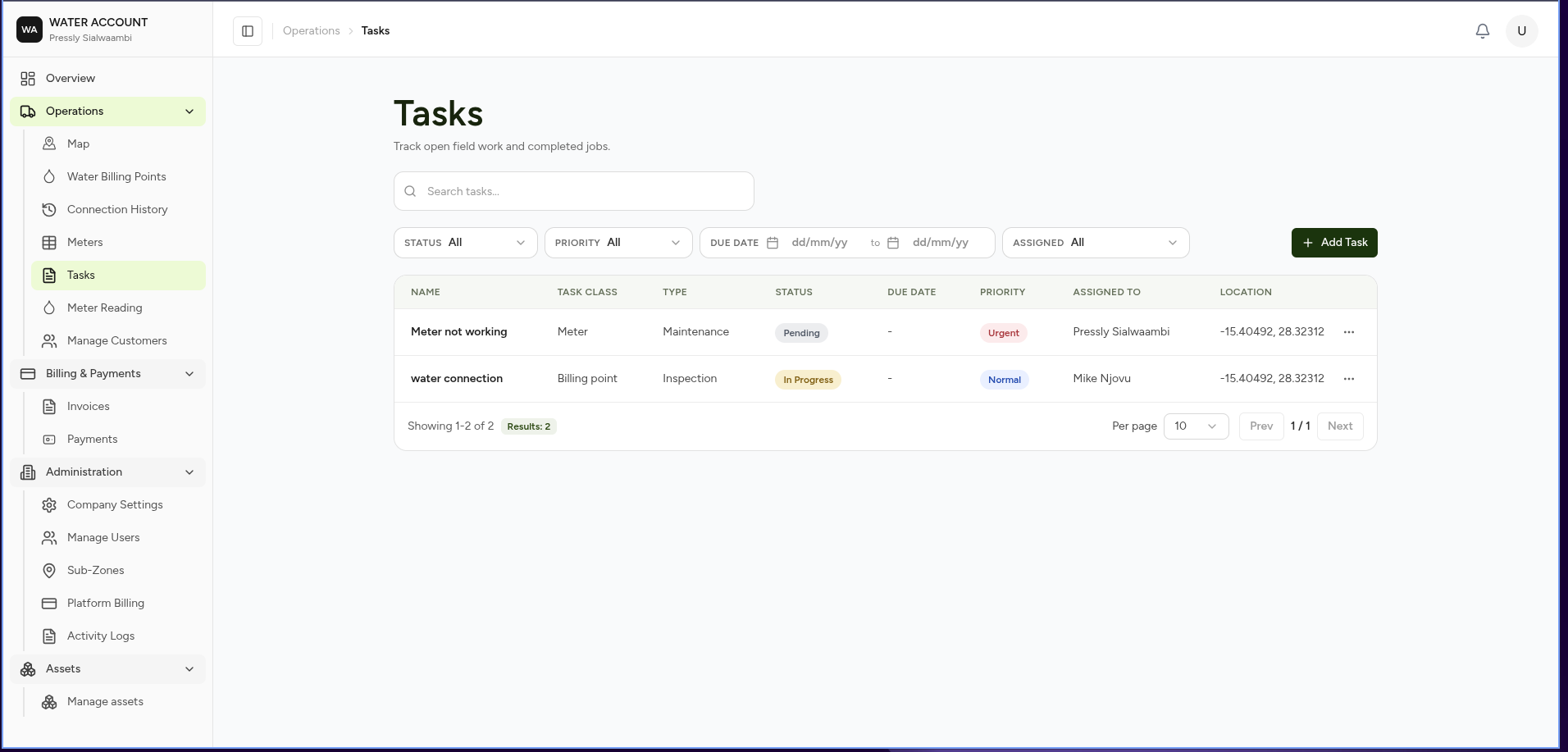
The Tasks page tracks open field work and completed jobs.
Tasks connect office staff with field workers by assigning specific jobs — such as fixing an asset, reading a meter, or collecting a billing payment — to a location and a person, and tracking them through to completion.
A task can be raised against any record in the system, not just meters. Typical examples include:
| Example Task | Task Class | Type |
|---|---|---|
| Fix a damaged asset | Asset | Repair |
| Read a meter | Meter | Meter Reading |
| Collect a billing payment | Billing Point | Payment Collection |
| Install a new meter | Meter | Installation |
| Inspect a connection | Billing Point | Inspection |
What You Can Do
From this page you can:
- View all tasks
- Search tasks
- Filter tasks by status, priority, due date, and assignee
- Create a new task
- Track a task's progress through to completion
Search
Use the search box to locate a task.
Search tasks...
Filters
Use filters to narrow the task list.
| Filter | Description |
|---|---|
| Status | Current state of the task |
| Priority | Urgency of the task |
| Due Date | Filter tasks due within a date range (dd/mm/yy to dd/mm/yy) |
| Assigned | Filter by the user the task is assigned to |
All filters default to All and can be combined.
Adding a Task
Select Add Task to create a new task and assign it to a location and a user.
Task Register
Each row represents one task.
The register displays:
| Column | Description |
|---|---|
| Name | Task title |
| Task Class | The category of task, e.g. Meter, Billing Point, Asset |
| Type | The specific kind of work, e.g. Installation, Inspection, Repair, Meter Reading, Payment Collection |
| Status | Current task status |
| Due Date | Date the task is due |
| Priority | Task urgency |
| Assigned To | The user responsible for completing the task |
| Location | Where the task takes place |
If no tasks match the current search or filters, the register displays:
No tasks match your current filters.
Task Status
Typical statuses include:
| Status | Meaning |
|---|---|
| Open | Task has been created but not started |
| In Progress | Task is currently being worked on |
| Completed | Task has been finished |
| Cancelled | Task was cancelled before completion |
Task Priority
| Priority | Meaning |
|---|---|
| Low | Can be scheduled flexibly |
| Medium | Should be completed within a normal timeframe |
| High | Requires prompt attention |
Expected Behaviour
The system should:
- Display all tasks by default.
- Apply search and filters immediately.
- Show an empty state when no tasks match the current filters.
- Open the task for detail/editing when selected.
- Reflect status changes as field workers update tasks (including from the mobile app).
Related Pages
- Meters
- Adding a Meter
- Meter Readings
- Asset Management
- Water Billing Points
- Payments
- Water Works – Tasks (mobile)