🧰 Assets (Mobile)
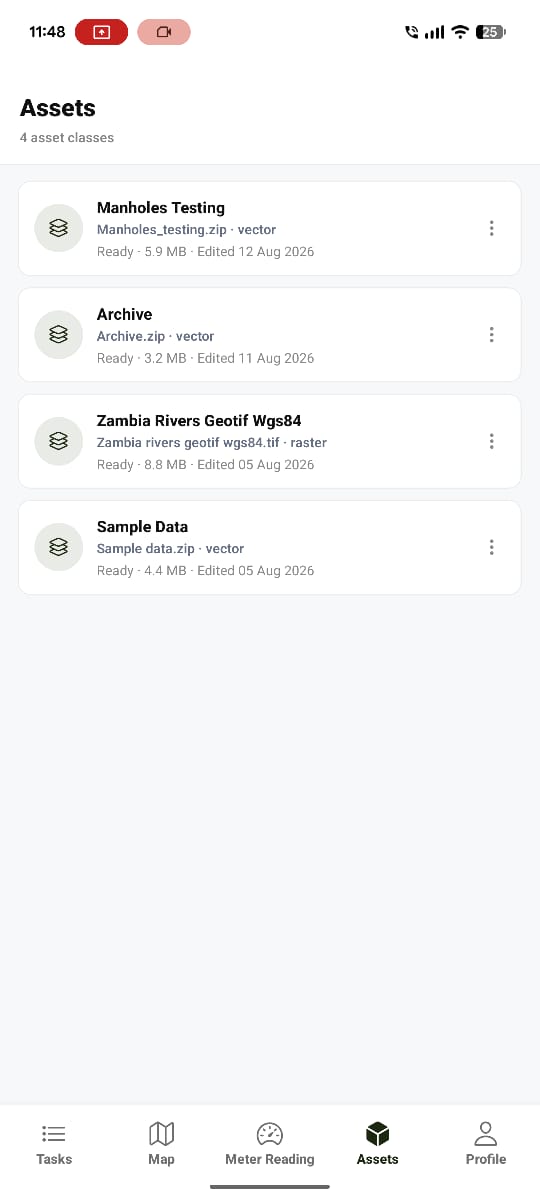
The Assets tab lets field workers browse infrastructure, view details, navigate to an asset, and raise a task directly from it.
Asset Classes and Assets
Assets are organised into asset classes. Each class contains many individual assets.
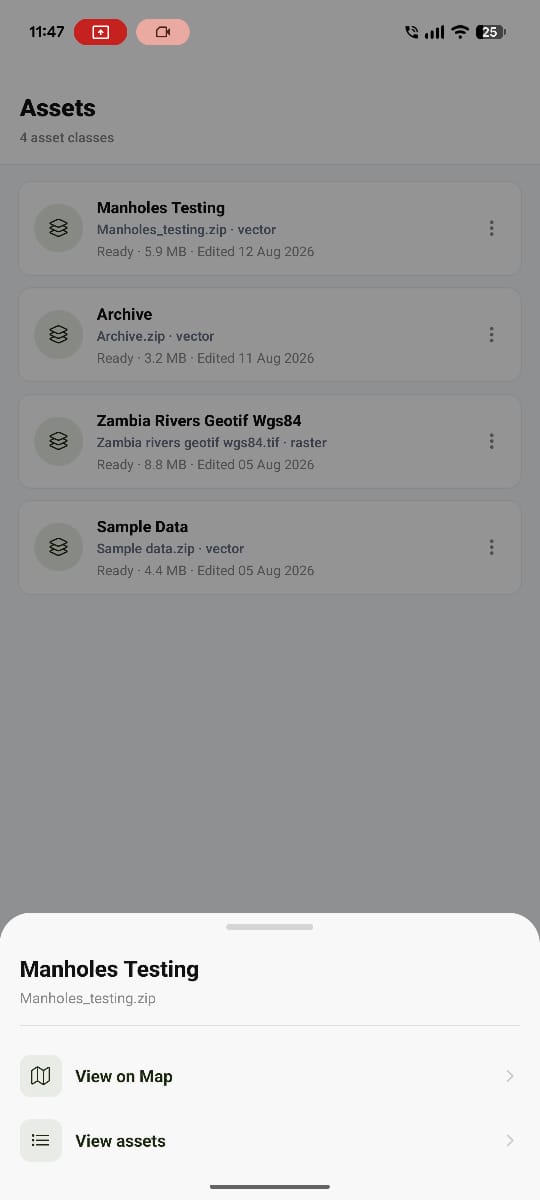
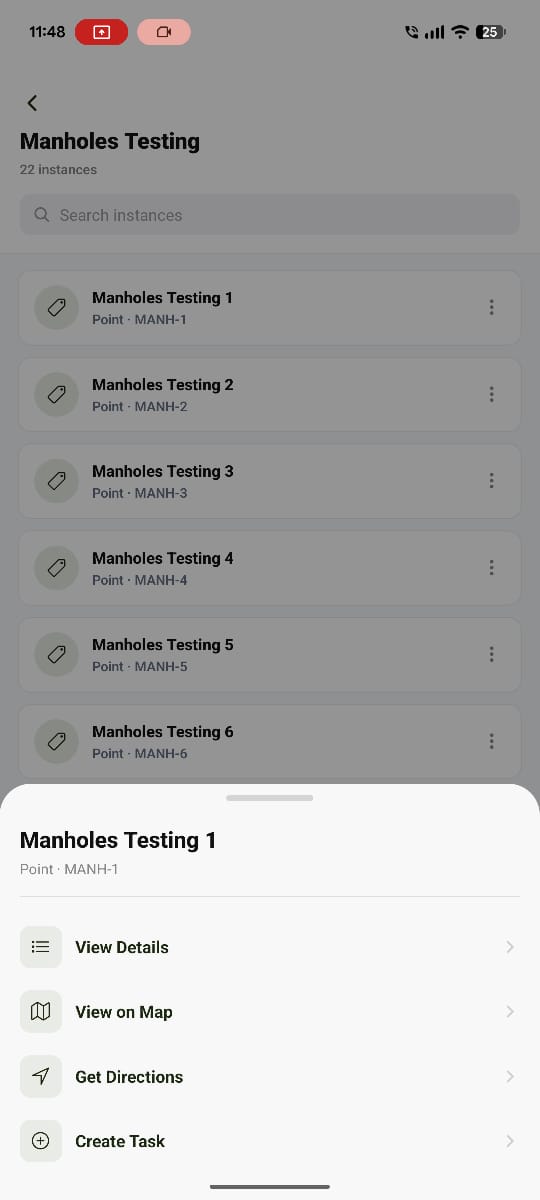
Opening a class lists its individual assets.
Asset Actions
Opening an individual asset offers:
| Action | Description |
|---|---|
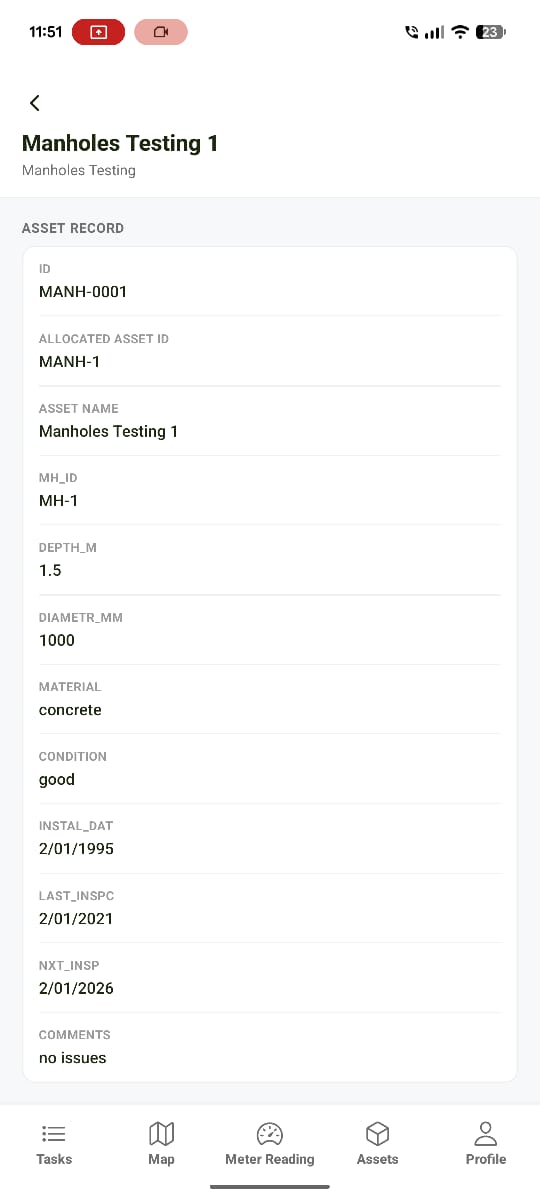
| View Details | See the asset's information |
| View on Map | Open the asset's location on the Map |
| Get Directions | Request location permission, then show your current location and the route/distance to the asset |
| Create Task from this asset | Raise a new task linked to this asset |
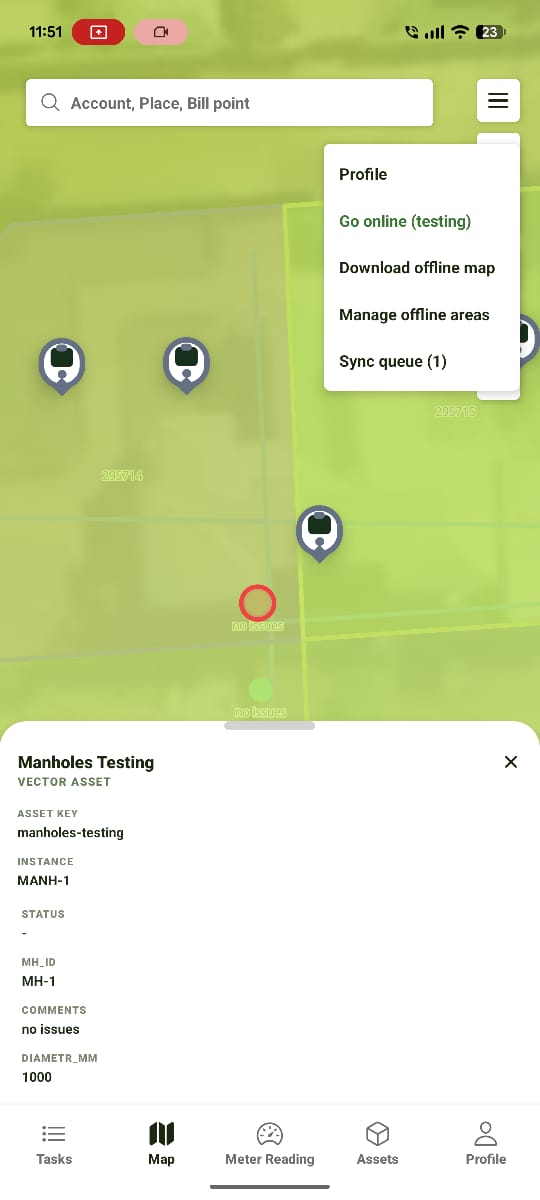
Worked Example: Creating a Task from an Asset
📷 Screenshot Placeholder
Image:
water-works-create-task-from-asset.pngPurpose Show the Create Task form pre-filled from a selected asset — e.g. name "Fix Leakage" and an assignee.
Select Asset

↓

Create Task

↓

Name: "Fix Leakage"

↓

Assign to a User

↓

Save

↓

Task appears in Tasks list immediately (local)

↓

Shows as pending in Sync Queue until synced
➜ See Tasks (Mobile) for what happens to the task after it's created.
Get Directions
Selecting Get Directions requests permission to access the device's location, then shows your current position and the route/distance to the asset.
Offline Behaviour
Asset classes and individual assets are readable offline once downloaded — data is read from local storage, so browsing assets in the field doesn't require a connection. See Offline Maps for the full offline/sync flow.
Expected Behaviour
The module should:
- List asset classes, then individual assets within a class.
- Show accurate asset details.
- Support navigation via View on Map and Get Directions.
- Allow a task to be created directly from an asset, appearing immediately in the Tasks list.
- Keep working from local data while offline.
Related Pages
- Water Works Overview
- Tasks (Mobile)
- Map (Mobile)
- Offline Maps
- Asset Management (Web)