🗺️ Offline Maps
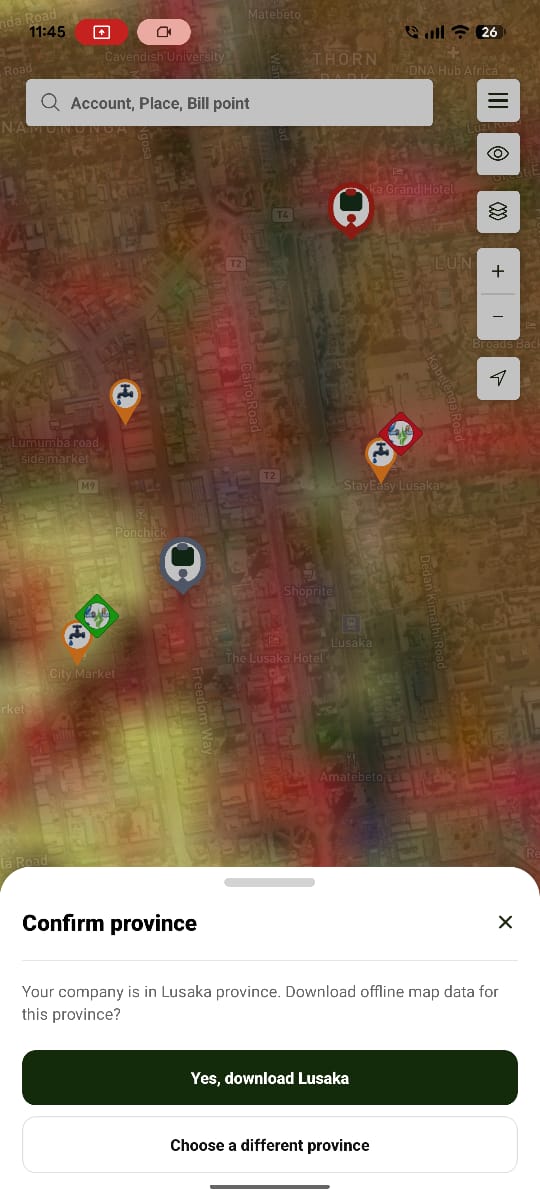
Offline Maps let field workers keep using Water Works when mobile data or network coverage is unavailable.
How the Download Area Is Detected
Open the menu icon next to the map's search bar to access Offline Map, Manage Offline Areas, and Sync Queue.
Starting a download uses the Mapbox Locations API (comparable to the Google Locations API) to resolve the company's registered address to a location.
Based on that address, the app auto-suggests the matching province for download — for example, a company registered and operating in Lusaka is offered a Lusaka download by default.
If the detected province is wrong, there's a manual option at the bottom of the screen to choose a different one.
Downloading
Once a province is confirmed, the download starts and shows a progress bar.
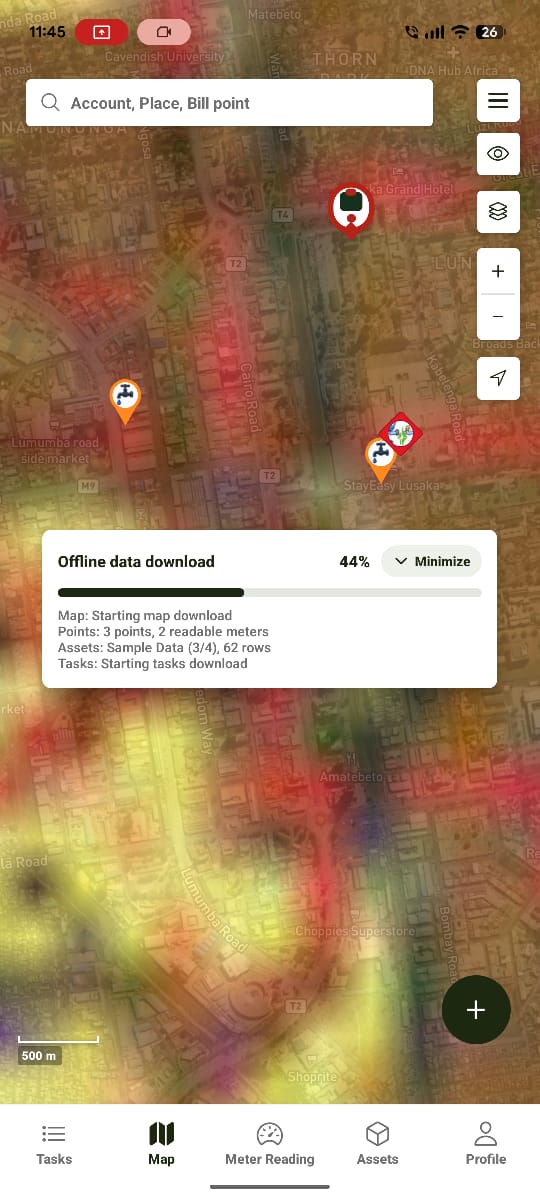
The progress bar can be minimized while it runs. Currently, the minimized progress indicator sits behind the map's floating + button — a known UI overlap that's being fixed in an upcoming release, which will move the progress indicator above the button.
Going Offline
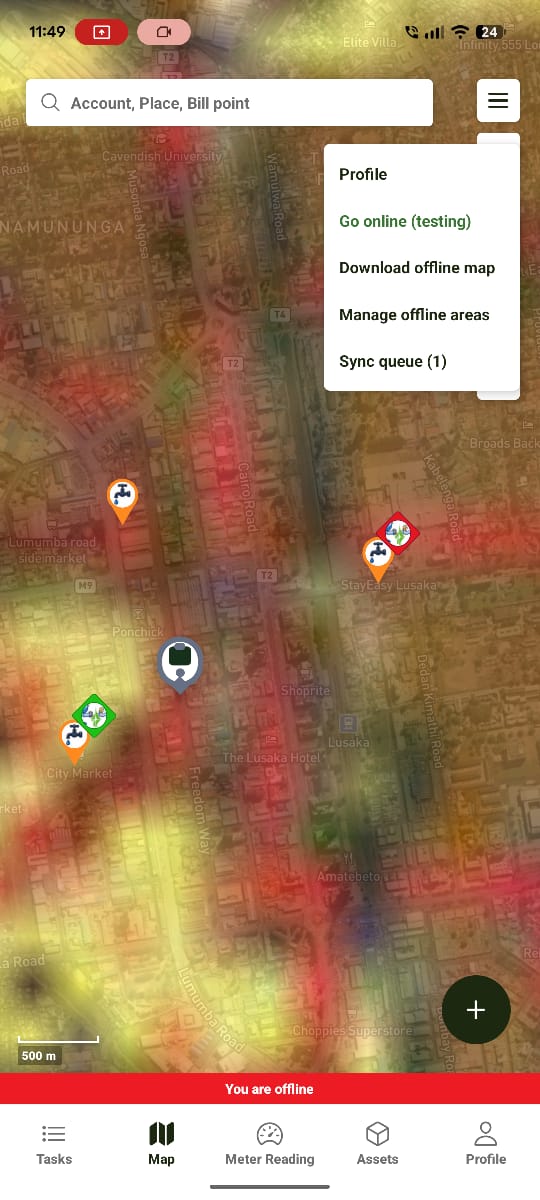
Once the device loses connectivity, the app switches to offline mode and shows a "You are offline" badge at the bottom of the screen.
What Works Offline
With the offline data downloaded, these keep working normally, reading from local on-device storage (so they load instantly — no network round-trip):
- Tasks — view assigned tasks, open task details, create new tasks
- Map — view billing points, tasks, and meters
- Assets — view asset classes and individual assets
Sync Queue
📷 Screenshot Placeholder
Image:
water-works-sync-queue.pngPurpose Show the Sync Queue listing pending offline changes.
While offline, anything a user creates or updates — for example, a task created from an asset — is stored on the device and added to the Sync Queue.
Once the device reconnects:
Reconnect

↓

Pending Changes Found (Sync Queue)

↓

Upload Changes

↓

Download Updates

↓

Data Synchronised
Known Limitation
⚠️ A task created while offline does not currently show any visual indicator (e.g. a badge) that it was created offline or is still unsynced — that information is only visible by checking the Sync Queue. This has been discussed as a possible future improvement but is not built yet.
Expected Behaviour
The application should:
- Auto-detect the download area from the company's registered address, with a manual override available.
- Show download progress and allow it to be minimized.
- Clearly indicate offline mode via the "You are offline" badge.
- Keep Tasks, Map, and Assets working from local storage while offline.
- Queue offline changes and synchronise automatically once back online.