📋 Tasks (Mobile)
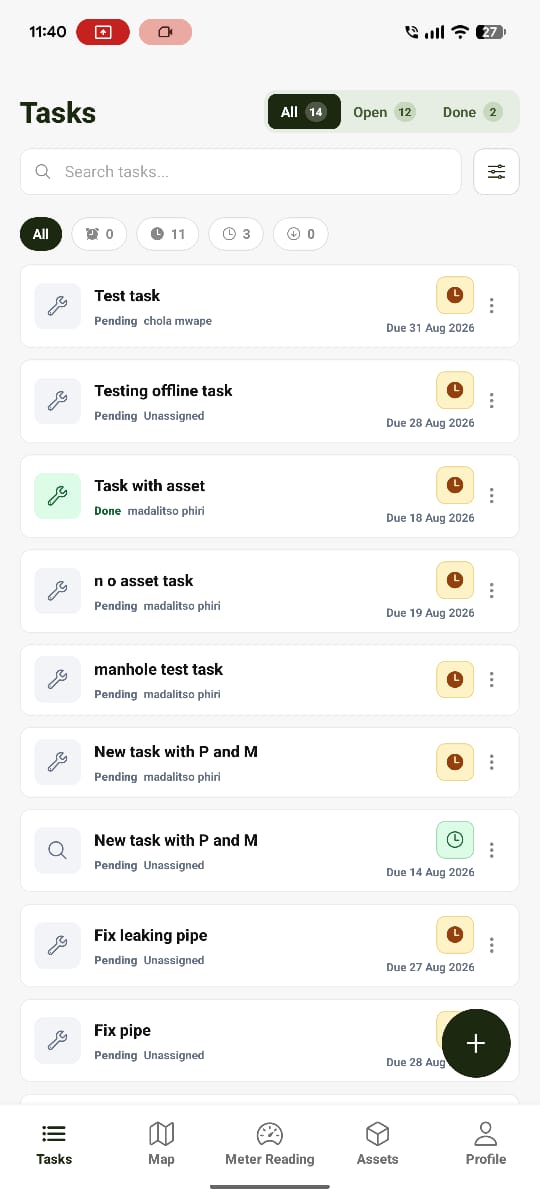
The Tasks module is where field workers see and act on the jobs assigned to them.
Role-Based Visibility
What a user sees on the Tasks screen depends on their role:
| Role | Visible Tasks |
|---|---|
| Company Administrator | All tasks |
| Agent (and other non-admin roles) | Only tasks assigned to them |
Task Detail
Tapping a task opens its detail view.
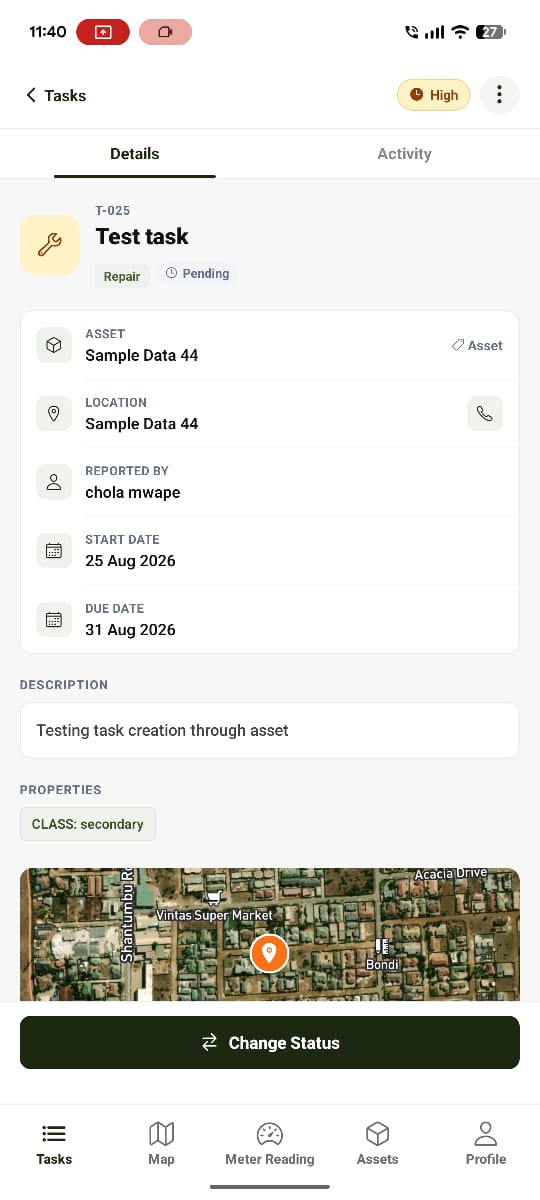
The detail view shows the task's information. If the task is linked to an asset, that asset's data is shown inline as well.
Actions
From the task detail view, a user can:
| Action | Description |
|---|---|
| View on Map | Open the task's location on the map |
| Get Directions | Navigate to the asset or task location |
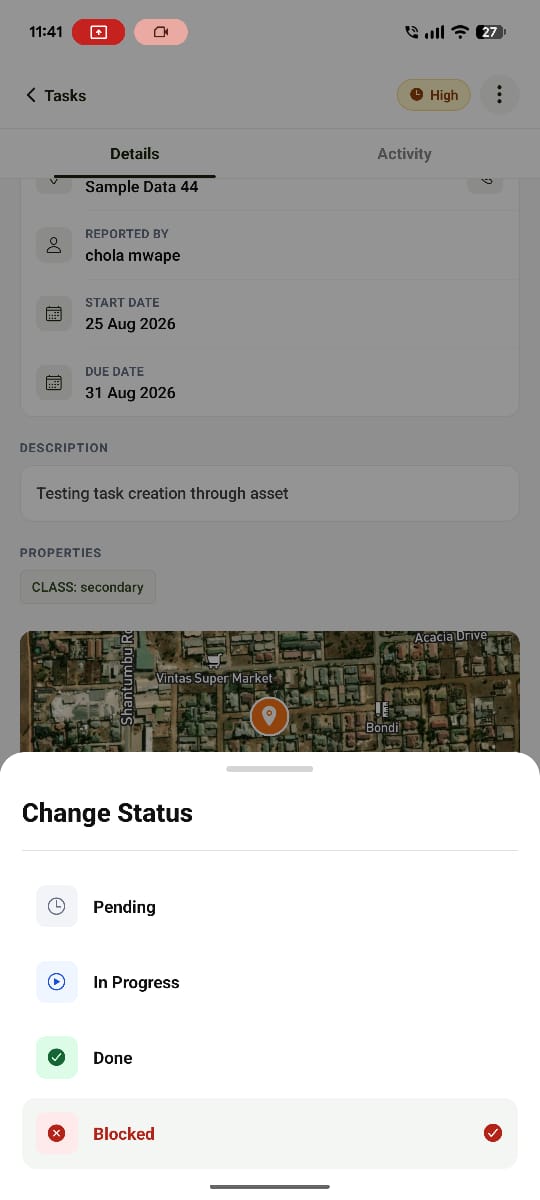
| Change Status | Update the task's status, e.g. mark it Complete |
Details / Activity Tabs
Task detail is organised into two tabs at the top of the screen.
Details
The task's core information — what needs to be done, where, and who it's assigned to.
Activity
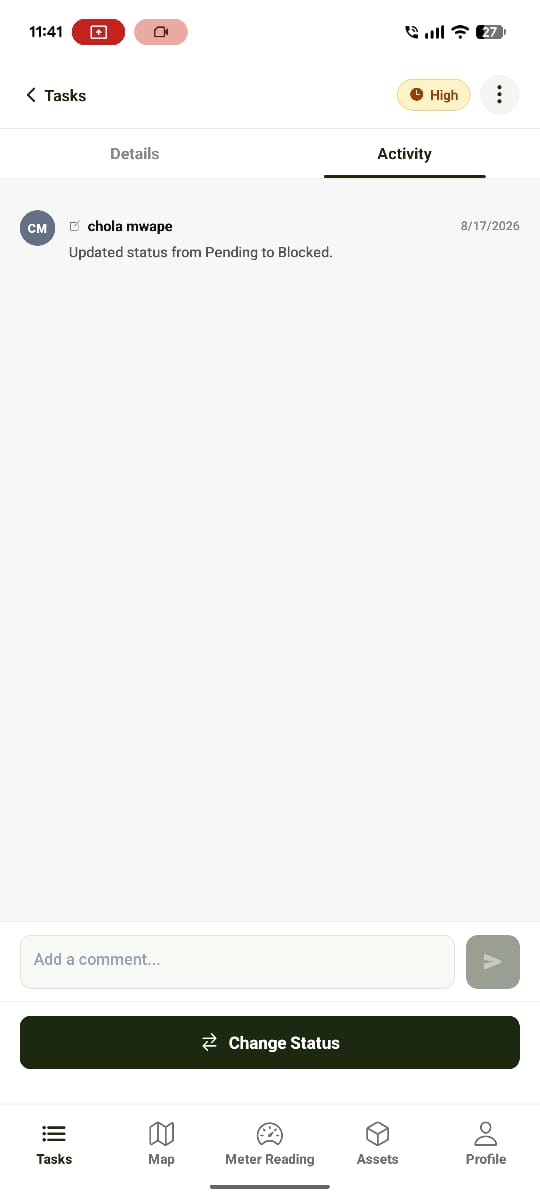
A log of everything that has happened on the task: actions performed, updates made, and comments left.
Creating a Task
Tasks can be created directly from the Tasks screen, or from an asset (see Assets in the Water Works Overview) — for example, selecting a leaking asset and choosing Create Task to raise a "Fix Leakage" job assigned to a specific user.
Offline Behaviour
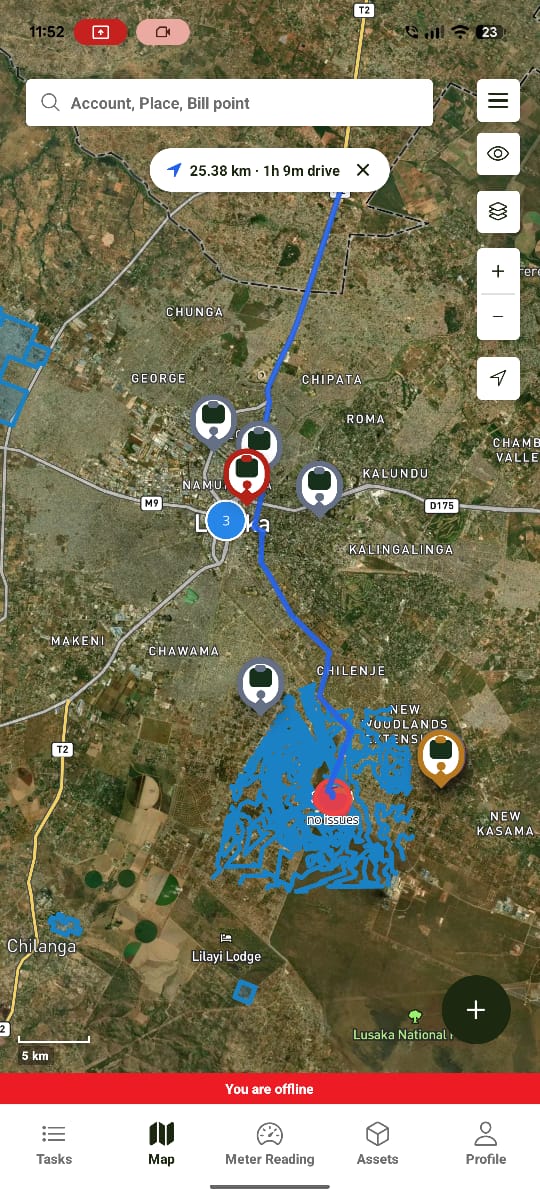
Tasks continue to work while offline — the list and task details are read from local storage, and any task created offline is queued in the Sync Queue until the device reconnects. See Offline Maps for the full offline/sync flow, including a known limitation around offline-created tasks not yet showing an unsynced indicator.
Expected Behaviour
The system should:
- Scope the task list to the logged-in user's role (all tasks for Administrators, assigned-only for Agents).
- Open the correct task detail on tap, including linked asset data where applicable.
- Reflect status changes immediately.
- Record every action, update, and comment on the Activity tab.
- Keep working offline, queuing changes for sync.
Related Pages
- Tasks (Web) — the web equivalent of this module
- Water Works Overview
- Offline Maps